Game elements
In Rythmo Bille, a level is made of notes: every platform is one. Around them, other elements change the way you jump: bonus notes, spikes, and, in Extreme and Demon levels, blocks, pads, rings and portals. Here are all 38 elements of the game, with what each one does, a tip to master it, and the editor tool that places it.
The pictures come from the game itself: they are the previews of the “Game elements” screen, drawn by the game engine. In the game, hover over a card (or tap it on a phone) to see the element in motion.
In every difficulty
You meet these elements in every level, from Easy to Demon. Most of them are notes: playing them at the right moment is what raises your score and your combo.
Balls
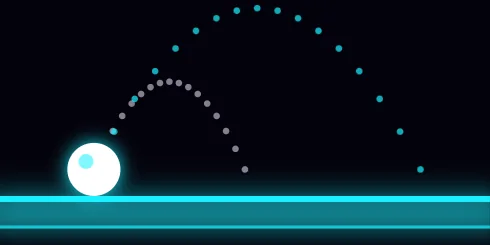
The ball
That’s you: it rolls forward on its own, in rhythm, and you choose when to jump. A short tap makes a small jump; holding makes it go higher. If the key is still held when it lands, it bounces.
Tip: Think of a jump like the length of a note: a short press for a nearby platform, a long press for a high one. Let go before landing if you don't want to bounce.
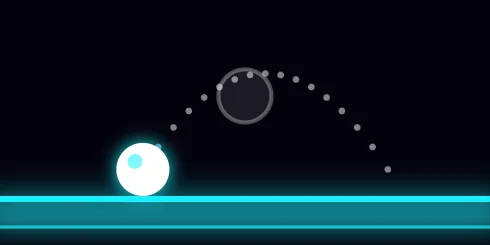
Ghost ball
Option (G key): a see-through ball plays the perfect path at the same time as you. It shows when to jump.
Tip: Turn it on (G key) when a section keeps beating you: if your ball overlaps with it, your timing is right. It doesn't play for you.
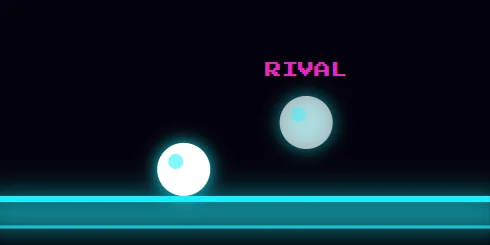
Opponent
In online duels: the other player’s ball, see-through, in their color, with their nickname.
Tip: It's there to compare: each player plays their own run. Only glance at it, or you'll follow its rhythm instead of the music.
Platforms
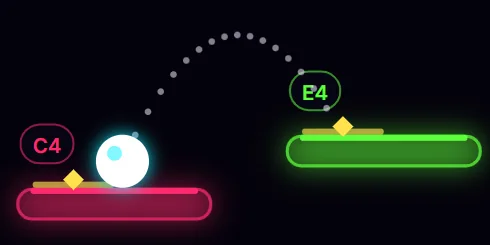
Platform
Every platform is a note: land on it to play it. The yellow mark shows the perfect spot: right on time is PERFECT, otherwise GREAT or OK. Some play a chord. You must have jumped for it to count.
Tip: Look at the next platform rather than the ball: its height tells you how long to hold, and the yellow line where to land. PERFECT means within 50 milliseconds; GREAT, within 110.
Editor: Platform tool (key 1)
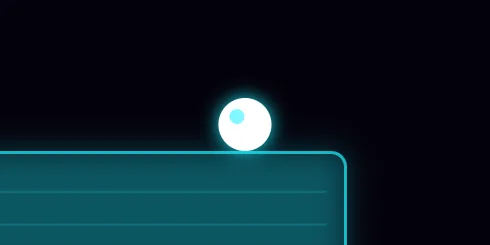
Start platform
The starting point, with no note. The run begins after a countdown.
Tip: Use the countdown to spot the first platform and its height: the first note comes right after.
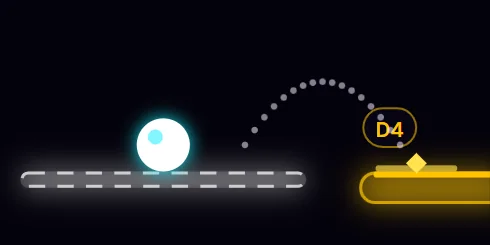
Rescue platform
After a fall (except in Demon), a white dotted platform catches you at the height of the next one. It plays no note: jump onto the real one.
Tip: It doesn't count as a note: don't aim for a PERFECT on it, get ready to jump to the real platform, which comes quickly.
To touch or to avoid
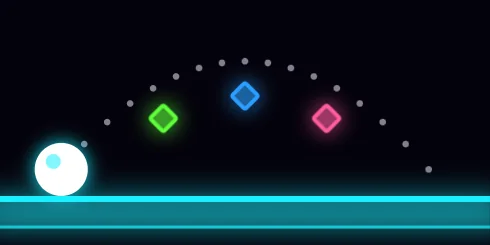
Bonus note
The diamond: touch it while rolling or jumping to play its note (50 points, multiplied by the combo). Missing it does not break the combo. In Easy and Normal, most play by themselves; in Extreme and Demon, some are up in the air.
Tip: Don't sacrifice a good jump for a hard bonus note: missing it doesn't break your combo, while a fall costs a life.
Editor: Bonus note tool (key 2)
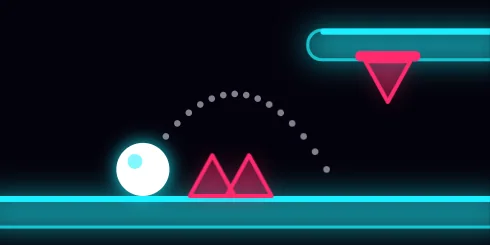
Spike
Touching it makes you fall: one life lost (in Demon, you start over). They sit on platforms, and underneath them, point down. In Extreme, Demon and custom levels.
Tip: Spikes on a platform are jumped over, often with a simple short press. Those hanging under a platform punish jumps that go too high: let go sooner.
Editor: Spike tool (key 3, custom difficulty)
Markers
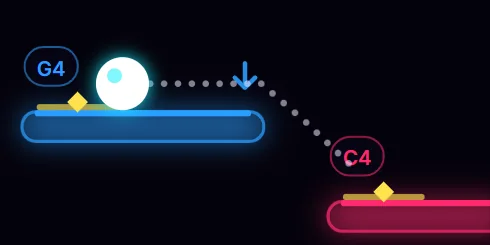
Drop arrow
In Easy and Normal: at this spot, don’t jump. Just drop onto the platform below.
Tip: Don't touch anything: let the ball roll off the edge. A reflex jump would carry you over the note below.
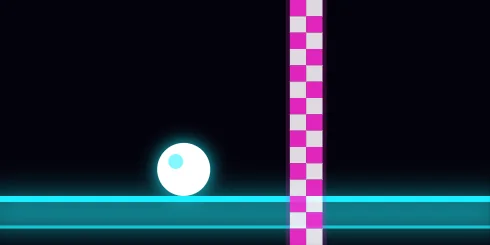
Finish
The finish line: crossing it ends the level. The last platform carries the word END.
Tip: Stay focused until the last note, the one marked END: it counts in the score like the others.
Blocks and obstacles
Blocks, pads, rings and portals appear in most Extreme levels, every Demon level, Circuit Rubis (Hard) and editor levels with the custom difficulty. In these game levels you have one life: at the slightest mistake you start over from the beginning (ATTEMPT 2, 3…) and the percentage reached is shown. To learn a section: Practice mode, in the Play menu.
In Extreme and Demon, the level becomes real scenery: blocks you roll on and bump into, and obstacles that close the way.
Blocks
You can land on them; some play a note.
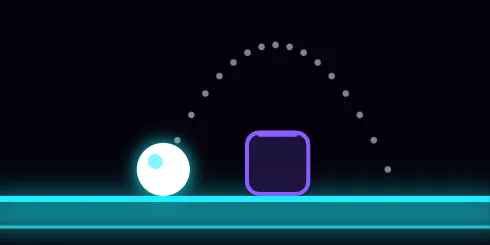
Block
A solid block: you can land on top, you bump your head from below, and hitting its face makes you lose.
Tip: You land on a block like on a platform. The danger is its face: when a block comes at the ball's height, jump early enough to go over it.
Editor: Block tool (key 4), Solid type
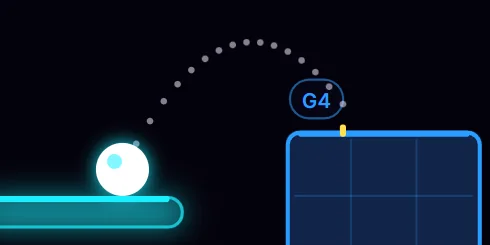
Note block
A block in a note’s color: land on it to play the note, just like a platform.
Tip: Play it exactly like a platform: it has its own note and its perfect moment.
Editor: Block tool (key 4), Note block type
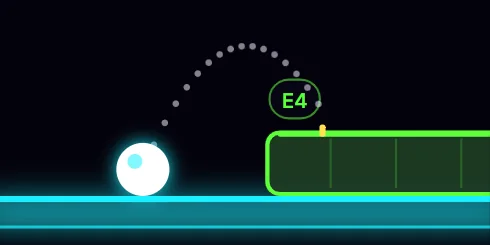
Sitting note block
A note block sitting on the platform: a small jump to climb onto it and play its note. Without jumping, you crash into the block.
Tip: A small jump is enough: a long press would carry you over the block and miss its note.
Editor: Block tool (key 4), Note block type, placed on a platform
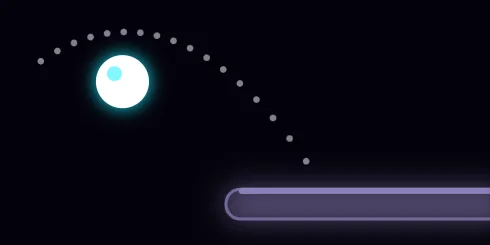
Catch platform
A grey surface with no note that catches the ball, for example after a series of rings.
Tip: It plays no note: it gives you time to get back in position between two series of elements.
Obstacles
Get past them without touching them.
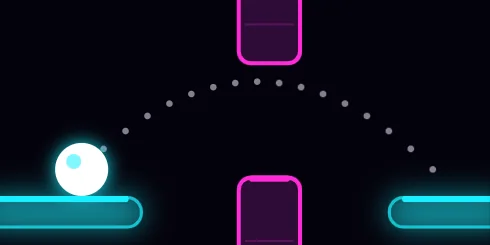
Gap
Two blocks with a hole between them: jump at the right moment to go through the hole.
Tip: Aim for the gap with the height of your jump: spot it before you get there and adjust how long you hold rather than when you press.
Editor: two blocks (key 4), one above the other
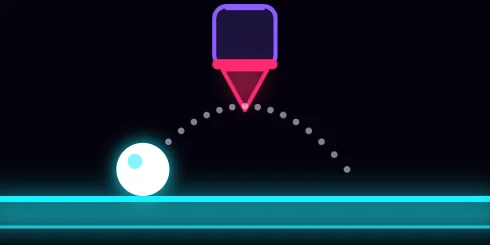
Ceiling spikes
Spikes hanging under a block: a jump that’s too high hits them. A short tap passes underneath.
Tip: Less is more here: a very short press keeps the ball under the points.
Editor: Block (key 4) and Spike (key 3)
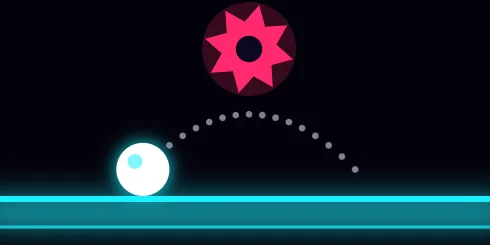
Saw
A spinning saw: touching it makes you lose. Often above a jump: don’t go too high.
Tip: A saw above a jump limits its height: jump low, right on time.
Editor: Saw tool (key 8)
Pads
A pad sits on a surface: it works by itself when the ball rolls over it, no press needed. On the level’s path, rolling over it earns 150 points × the multiplier; missing it breaks your combo, unless it is marked “Must not be touched”.
Their colour tells you what they do: yellow for a big jump, pink for a small one, blue for gravity.
Jumps
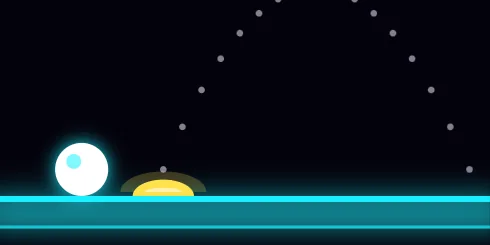
Yellow pad
A big automatic jump.
Tip: Don't press as you reach a pad: it launches you by itself. Save your press for what comes next.
Editor: Pad tool (key 5), Big jump
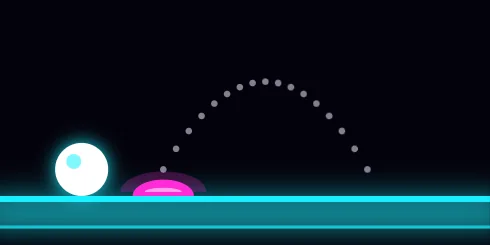
Pink pad
A small automatic jump.
Tip: Its small jump is enough to clear a low obstacle: let it work and get ready to land.
Editor: Pad tool (key 5), Small jump
Gravity
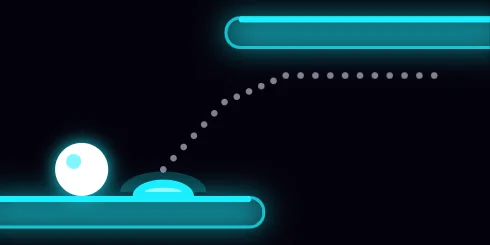
Blue pad
Flips gravity. If it was pulling down, the ball falls upward and rolls under the platform above; if it was already flipped, the ball comes back down.
Tip: After a blue pad everything is reversed: jumping takes you away from the ceiling. Remember that jumping always means moving away from the surface you're rolling on.
Editor: Pad tool (key 5), Gravity
Rings
A ring floats in the air and does nothing on its own. To trigger it, you must jump while the ball is inside: press the jump key (Space, click or tap) as it passes through. Without a press, the ball goes straight through with no effect. On the level’s path, triggering a ring earns 150 points × the multiplier; missing it breaks your combo, unless it is marked “Must not be touched”.
The colours match the pads: yellow, pink and blue do the same thing, but in mid-air and when you decide. Purple makes you dive.
Mid-air jumps
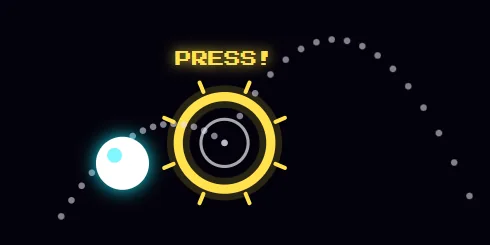
Yellow ring
Jump while the ball is inside: it shoots back up in mid-air, like a new jump.
Tip: Press when the ball is inside the ring, not before: in the air, pressing outside a ring doesn't launch the ball again.
Editor: Ring tool (key 6), Jump
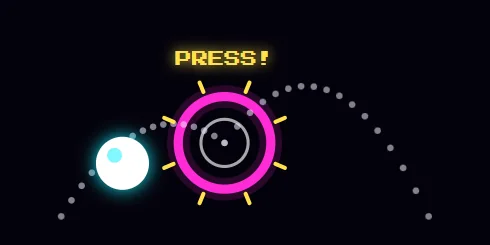
Pink ring
Jump while the ball is inside: a small jump in mid-air.
Tip: Gentler than the yellow one, it fixes a trajectory by a little. Without a press, the ring does nothing at all.
Editor: Ring tool (key 6), Small jump
Gravity and dive
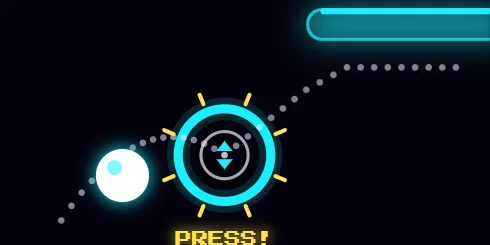
Blue ring
Jump while the ball is inside: gravity flips. If it was pulling down, the ball heads upward; if it was already flipped, the ball comes back down.
Tip: Like the blue pad, but on your signal: you choose the moment gravity flips. The path that follows depends on that moment.
Editor: Ring tool (key 6), Gravity
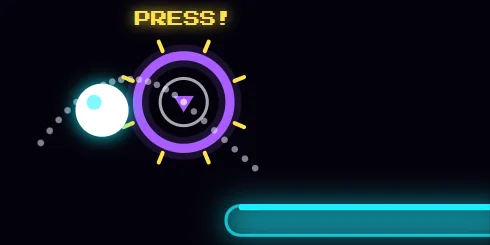
Purple ring
Jump while the ball is inside: it dives straight down to the ground.
Tip: It gets you down to a low note fast: press in the centre of the ring and the ball rushes to the ground.
Editor: Ring tool (key 6), Dive
Notes
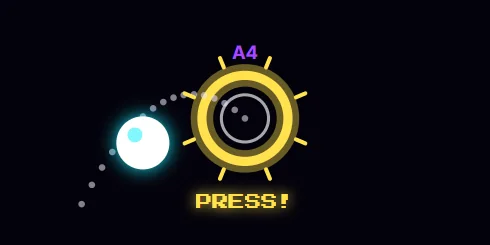
Note ring
A ring that carries a note: jump while the ball is inside, right on time, to play it.
Tip: It's both a ring and a note: press on the beat of the music, as you would for a perfect landing.
Editor: Ring tool (key 6), “Plays a note”
Portals
The ball must pass through a portal for it to work. Fixed jump, heavy ball, mirror and speed portals work even if the ball passes beside them: you can’t avoid them. Passing through a portal on the path earns 150 points × the multiplier; missing it breaks your combo, unless it is marked “Must not be touched”.
Each portal changes one rule of the game until the next portal of the same family: gravity, speed, scrolling direction, jumping or the ball's weight.
Gravity
They turn the world upside down, or set it right again.
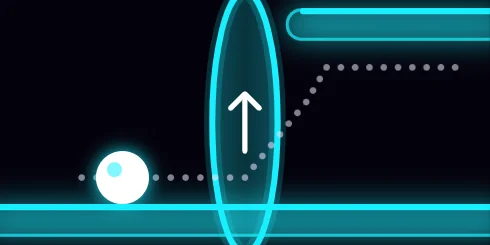
Gravity portal ↑
The world turns upside down: gravity pulls up and the ball rolls on the ceiling.
Tip: The ceiling becomes the floor: jumps go downwards. Read the top platforms as if the screen were upside down.
Editor: Portal tool (key 7), Gravity → Flipped ↑
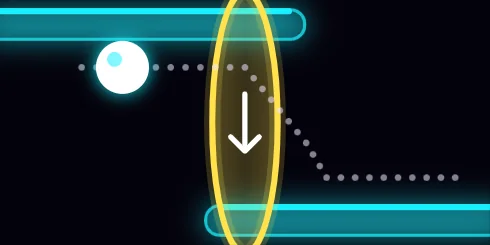
Gravity portal ↓
Gravity goes back to normal: the ball falls back down.
Tip: Get ready to drop: the ball heads down again as soon as it crosses the portal.
Editor: Portal tool (key 7), Gravity → Normal ↓
Speed
They change how fast the world scrolls. They work at any height, even if the ball passes beside them: the music stays in sync with the notes.
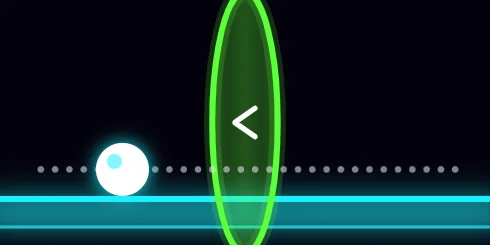
Portal ×0.7
The world slows down.
Tip: The world slows down, but the music doesn't: notes arrive at the same moment, just closer together on screen. Trust your ears.
Editor: Portal tool (key 7), Speed → Slow ×0.7
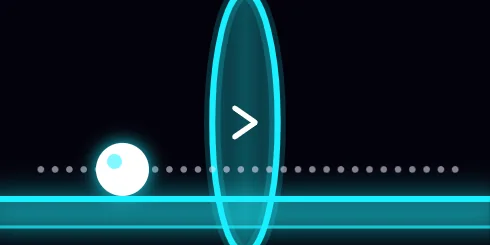
Portal ×1
Normal speed.
Tip: It restores the level's base speed after a slow or fast portal.
Editor: Portal tool (key 7), Speed → Normal ×1
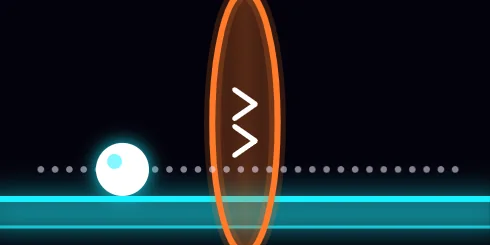
Portal ×1.3
The world speeds up.
Tip: Platforms spread out and scroll faster: look further ahead.
Editor: Portal tool (key 7), Speed → Fast ×1.3
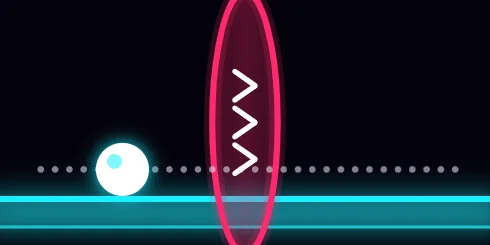
Portal ×1.6
The world goes very fast.
Tip: This is top speed, 1.6 times normal. Jumps look longer on screen, but the moment you press is still what counts.
Editor: Portal tool (key 7), Speed → Very fast ×1.6
Mirror
They change the direction the world scrolls in.
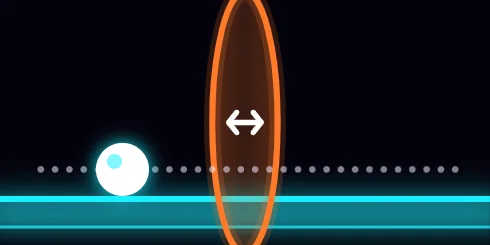
Mirror portal
The world flips left to right: it scrolls the other way. It works even if the ball passes beside it.
Tip: The level scrolls from right to left: your moves don't change, only how you read the screen. The first few times, trust the music.
Editor: Portal tool (key 7), Mirror → On
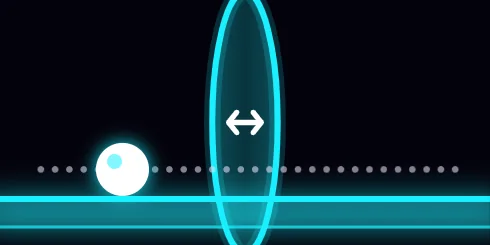
Normal portal
End of the mirror: the world scrolls left to right again.
Tip: The usual direction comes back at once: switch back to reading left to right.
Editor: Portal tool (key 7), Mirror → Off
Jump
They decide whether holding the key makes you go higher.
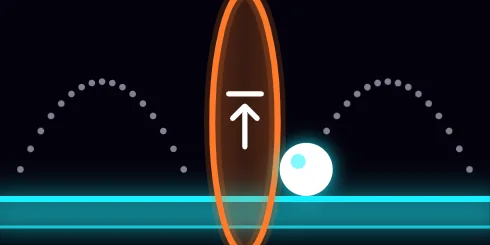
Fixed-jump portal
Holding no longer makes you go higher: every jump has the same height, only the timing matters (like in Geometry Dash). It works even if the ball passes beside it.
Tip: Holding no longer helps: short, steady presses on the beat are all you need.
Editor: Portal tool (key 7), Jump → Fixed
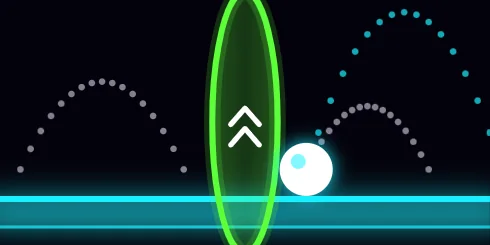
Free-jump portal
Back to the normal jump: a short tap makes a small jump, holding makes it go higher.
Tip: You can control the height again: a short press for a small jump, a long one to go higher.
Editor: Portal tool (key 7), Jump → Free
Ball weight
They make the ball lighter or heavier: its jumps and falls change.
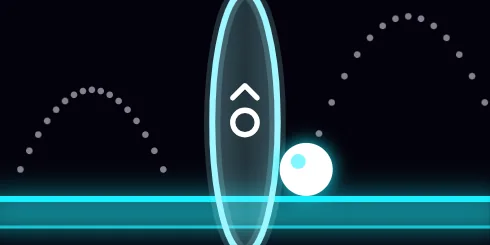
Light portal
The ball becomes light: it goes higher and falls slowly.
Tip: Gravity only works at 60 %: the ball goes higher and falls slowly. Hold for less time than usual.
Editor: Portal tool (key 7), Ball weight → Light
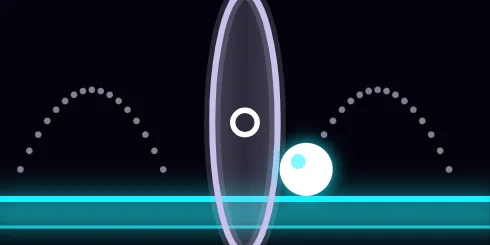
Normal weight portal
The ball gets its normal weight back.
Tip: Back to normal weight: your usual timing works again.
Editor: Portal tool (key 7), Ball weight → Normal
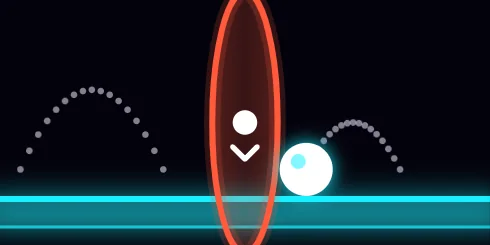
Heavy portal
The ball becomes heavy: lower, shorter jumps and a fast fall. It works even if the ball passes beside it.
Tip: Gravity is 1.5 times stronger: hold longer to reach a high platform, and expect to fall fast.
Editor: Portal tool (key 7), Ball weight → Heavy
Where do you find each element?
| Elements | Where to find them |
|---|---|
| The ball, platforms, the start platform, the finish | In every level |
| Bonus notes | In every difficulty; in Extreme and Demon, some are in the air |
| The drop arrow | In Easy and Normal |
| The rescue platform | After a fall, in levels without blocks or portals |
| Spikes | In Extreme, Demon and custom levels |
| Blocks, saws, pads, rings and portals | In most Extreme levels, every Demon level, Circuit Rubis (Hard) and editor levels with the custom difficulty |
| The ghost ball | An option, turned on with the G key |
| The opponent | In online duels |
Practising levels with elements
In the game's levels with blocks and portals you only have one life: at the slightest mistake the run starts over, showing the attempt number and the percentage you reached. To learn a section full of elements:
- Choose Practice mode in the Play menu: start just before the section, loop it, slow it down to 75 or 50%, place your checkpoints and show the perfect path. No score and no Shards.
- Watch the Bot: the “Bot” button starts the level played by the computer. Look at where it presses in the rings and how it gets past the blocks.
- Start with Abysse, the reference Demon level, before community levels. The Demon mode guide explains how it works.
Placing elements in the editor
Every element is placed in the level editor with a tool, each with its own keyboard key. The pad, the ring and the portal have several types: you pick the type in the tool (big jump, gravity, speed…). Spikes, blocks, saws, pads, rings and portals are placed in a level with the custom difficulty, whatever its style.
Tools and their keys
- 1 Platform
- 2 Bonus note
- 3 Spike
- 4 Block
- 5 Pad
- 6 Ring
- 7 Portal
- 8 Saw
Going further: how to play (controls, score and lives), the level editor and all the guides.